Skip to content →
OppulenceOppulence
ProductFeaturesUse casesPricingResources
Sign inStart for free
See how it works
Sign inStart for free
ProductsFeaturesUse casesHow it worksPricingDownloadResourcesSecurity

Product

The Oppulence assistantOppulence WebOppulence DesktopOppulence VoiceDownload

Features

Follow-ups and commitmentsRelationship contextWork that needs youReview and approveMeeting captureLive notes

Use cases

Founder-operatorAccount managementMeetingsResearch and verification
Sign inStart for free
Loading
Oppulence

Product

ProductsThe Oppulence assistantWebDesktopVoicePricingDownload

Features

Follow-ups and commitmentsRelationship contextWork that needs youReview and approveMeeting captureLive notesLocal vaultAgents

Use cases

Founder-operatorAccount managementMeetingsResearch

Resources

Resource hubGuidesChangelogIntegrationsSecurityCompareAnswer hubBlogCustomers

Compare

CRMMeeting notesInboxAI assistants

Company

ContactPrivacyTermsResponsible disclosureDiscord
Oppulence

© 2026 Playbook Media · Oppulence

All productsWebDesktopVoice

Say it. Keep working.

Oppulence Voice. Speak into the app you are already using. Dictate a reply, capture a thought, or record a meeting through a lightweight companion that stays within reach.
Download VoiceExplore Voice
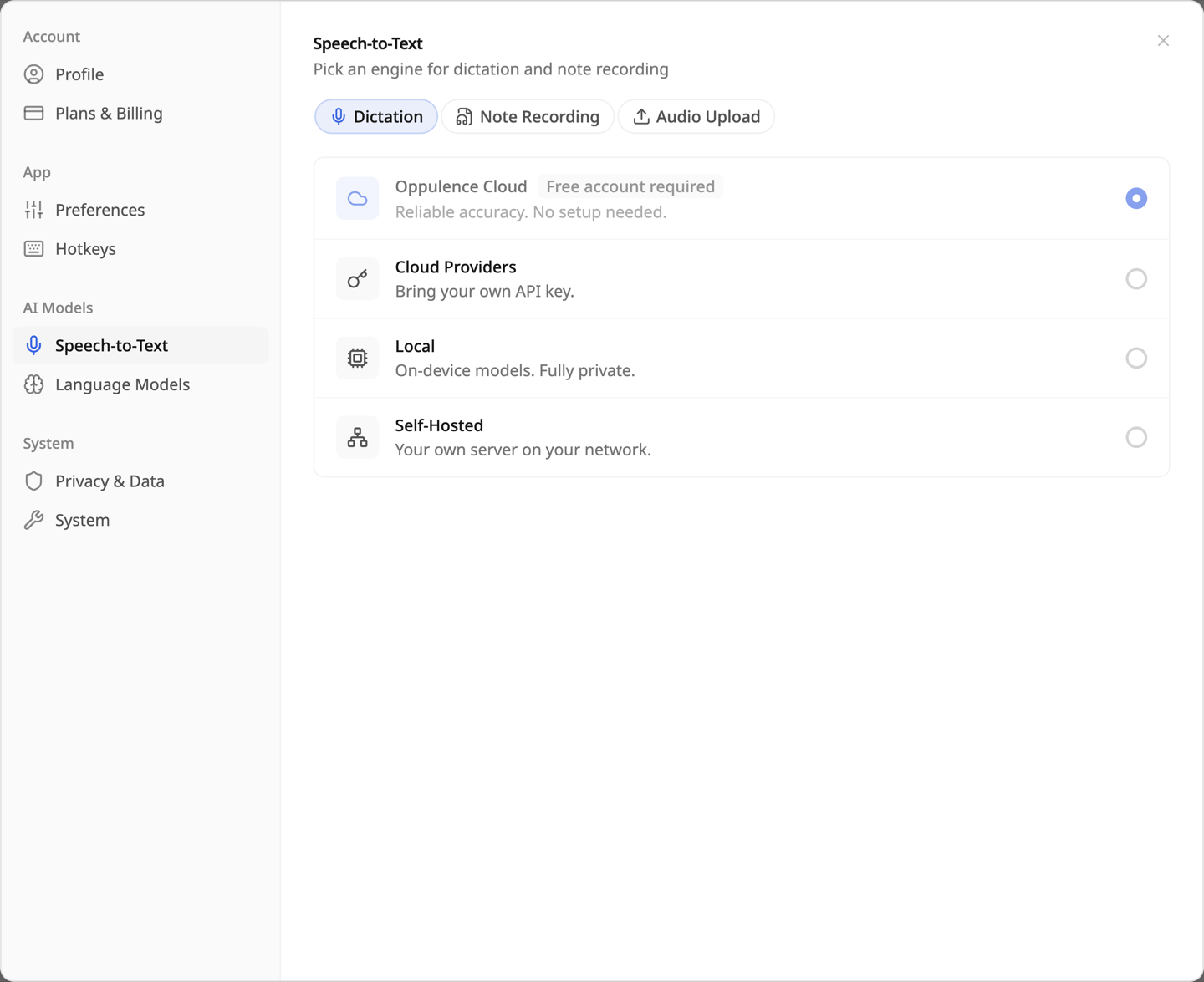
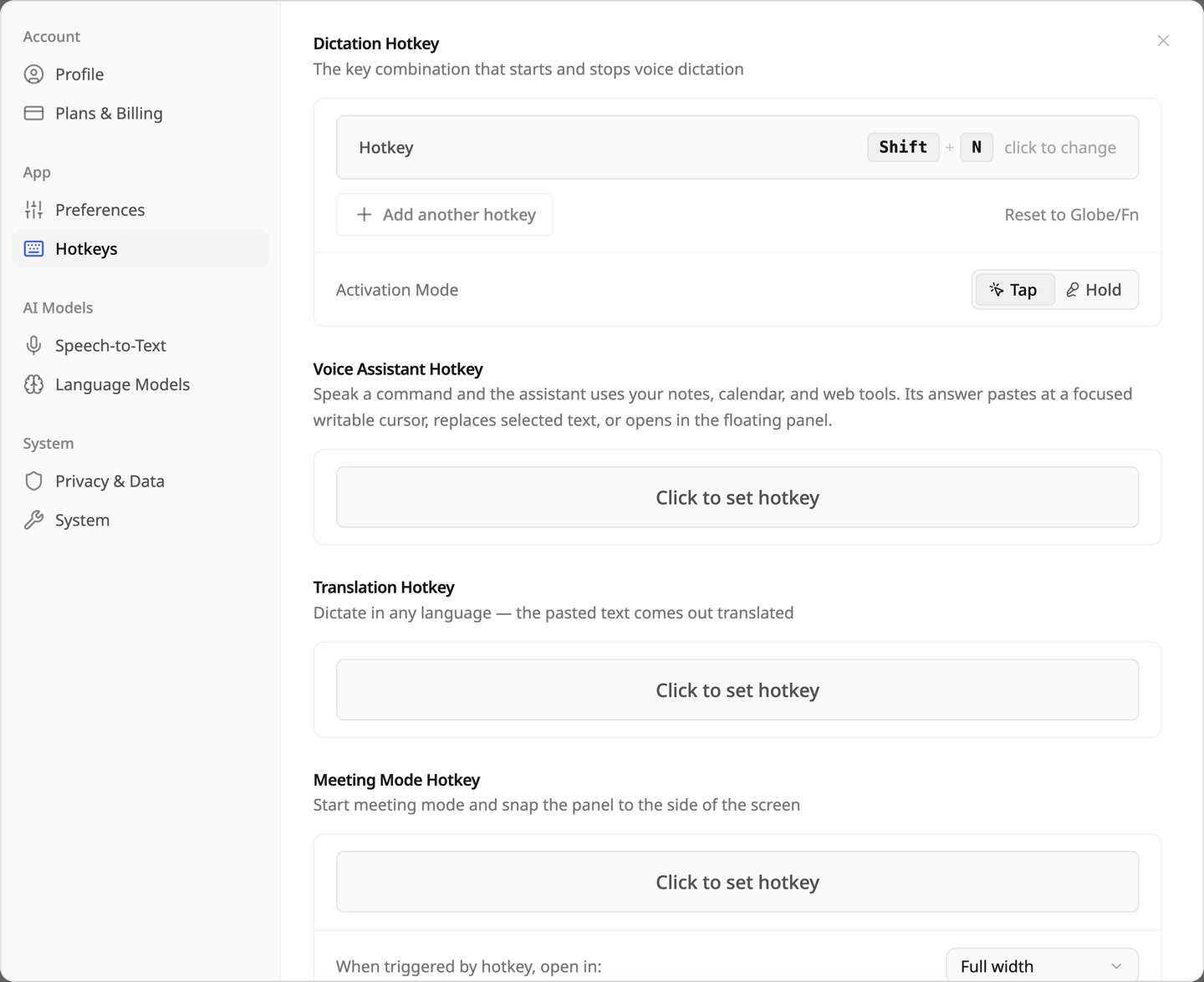
Voice settings for dictation, voice assistant, translation, and meeting hotkeys
Oppulence Voice · Product preview
Where it runs
A lightweight desktop companion
Best for
Dictation, thoughts, and meetings
Transcription
Your choice of local or cloud

What you can use today

Use Voice for dictation, selected-text editing, meeting capture, and local or cloud transcription. It can be used independently of Oppulence Desktop.

In development. Ask Oppulence will connect the floating panel to the shared assistant. Reviewing relationship matches and publishing accepted captures into relationship history are still in development.

The cursor is already in the right place.

Press your dictation shortcut and speak into the email, document, or message you are writing. Use selection editing to revise a passage without moving the whole task into a chat window.

  • Choose a global hotkey that fits your workflow
  • Insert text at the cursor in supported apps
  • Revise selected text where you are working
Configurable dictation hotkey with tap or hold activation and voice assistant shortcuts

Capture it before the details disappear.

Record a meeting with appropriate consent, or speak a note while the thought is fresh. Review the transcript and speakers afterward. A personal observation remains your perspective; it is not the same as something a customer said.

  • Visible controls while recording
  • Transcripts and speaker corrections
  • Private notes you can review before sharing
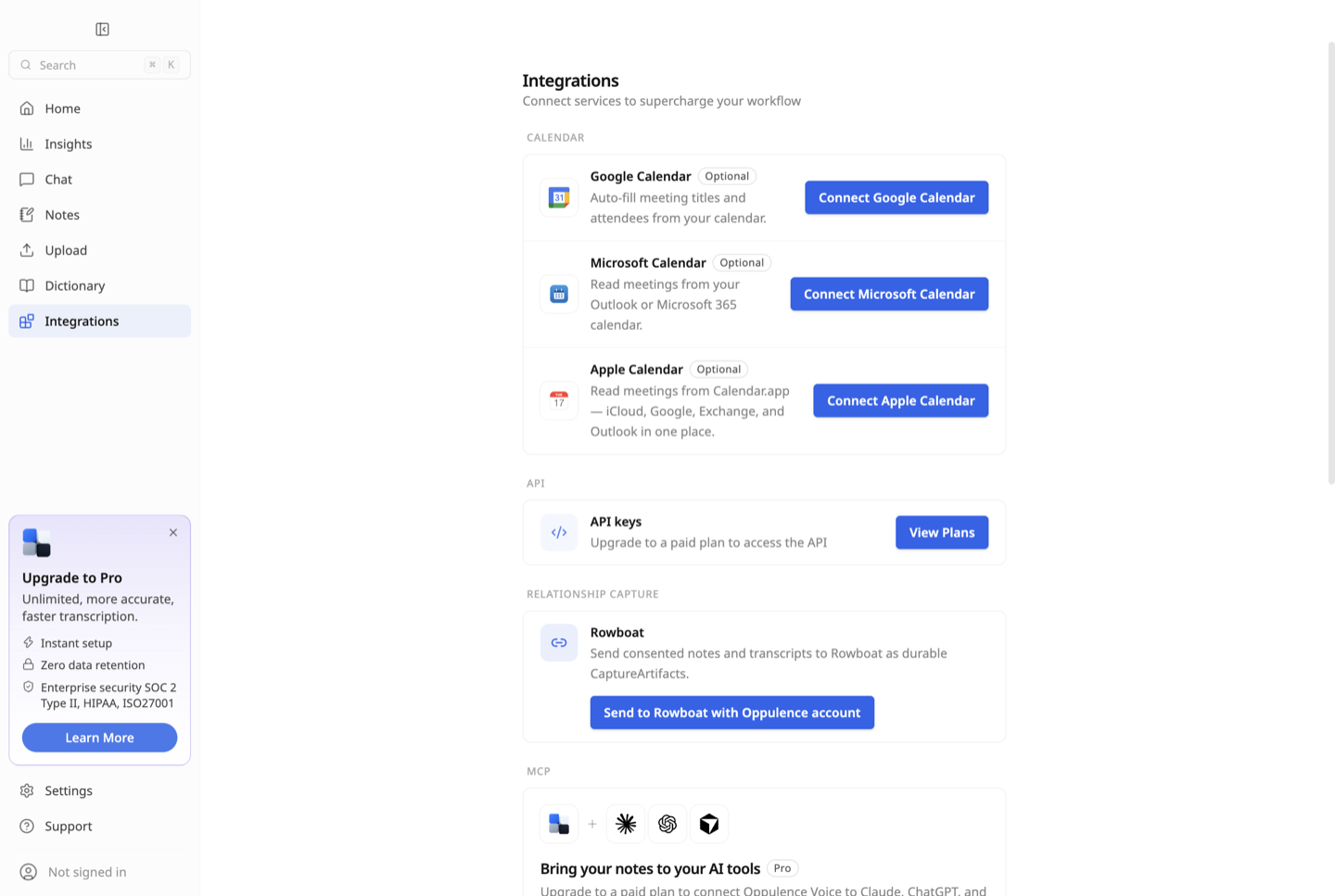
Voice meeting and integration settings

Choose where your words are processed.

Select a local transcription engine when you want audio processed on your device, or configure a cloud provider. Add names and specialized terms to your vocabulary so recurring words are easier to capture correctly.

  • Local and cloud transcription options
  • Provider settings you can inspect
  • Custom vocabulary for names and terms
Speech-to-text settings showing available local and cloud transcription choices

Get started with Oppulence Voice.

  1. 01

    Install the companion

    Choose an available Voice release. You do not need to install the full Desktop workspace first.

  2. 02

    Choose an engine and shortcut

    Select local or cloud transcription, set your hotkey, and grant the permissions required for capture.

  3. 03

    Try it in your next reply

    Place your cursor in a supported app, speak a short draft, and review the text before sending.

Questions about Oppulence Voice

No. Voice is an optional, separate application and can be used on its own. Install Desktop when you also want the full workspace for local files, email, and deeper review.

It depends on your configuration. A selected local transcription engine processes speech on the device. Cloud transcription sends audio to that provider, and cloud assistant features may send text or other selected context for processing.

Dictation inserts text at the cursor in supported applications. Permissions and behavior can vary by operating system and app. Start with a short draft and review the result before sending.

No. The full capture-to-relationship experience is in development. It is being designed to let you review speakers, confirm relationship matches, and choose which artifacts to share.

That shared connection is planned. Today, Voice has its own standalone capabilities. The goal is to ask about a person, email, meeting, or note from the floating panel and open the full workspace for a larger review.

Keep the thought. Keep your place.

Add Voice when speaking is the easiest way to get the next sentence down.

Download Voice

Add another way to work, when you need it.

Oppulence Web

Review relationships, source evidence, and proposed actions in your browser. No desktop installation required.

Explore Web

Oppulence Desktop

A native workspace for email, local files, a Markdown vault, and deeper work with the assistant.

Explore Desktop